PS5 error codes explained: What each message means and how to fix it


For any PlayStation 5 owner who’s been exploring Leonida in GTA 6, trying to download the latest PlayStation Plus game, or even just attempting a round of Fortnite, there are plenty of PS5 error codes that can interrupt a gaming session — each with its own specific fixes.
Whilst these combinations of letters and numbers can help identify what has gone wrong with your console, they don't necessarily tell you exactly what's caused the problem.
In fact, before attempting a factory reset or deleting any of your games like Grand Theft Auto VI (that’s being played on many millions of units right now), we'd recommend making a note of the complete error code and checking the PlayStation Network status page, since there can initially be something wrong with the service as a whole, rather than your own console.
For everything else, thanks to some careful research and advice from Sony itself, GAMINGbible has broken down all 29 PS5 error codes, what they mean, and what you can do about fixing them.
PS5 error codes quick lookup
Depending on what you're having trouble with on your PlayStation 5, we've divided the error codes into five categories, then have used Sony’s support page to break each category down further below:
- Game and app errors
- Network and PlayStation Network errors
- Account, licence and PlayStation Plus errors
- Storage, USB and disc errors
- System software, startup and update errors
Game and app errors

Advert
If you're experiencing crashes in one particular game, it doesn't necessarily mean there's something wrong with your PS5 itself. If the same problem crops up across multiple titles, however, this is when any of the following error codes warrant further investigation.
CE-108255-1
- Message shown: “An error occurred with the game/application.”
- What it means: A game or application has encountered a fault.
- First step: Highlight the game on your home screen, press the Options button, and select Check for Update.
With recent reports of PS5 issues whilst playing GTA 6, encountering CE-108255-1 doesn't prove that games like Rockstar's latest Grand Theft Auto sequel have damaged your console. To start, Sony instead recommends updating the affected game first and visiting PlayStation Repairs only if you need further assistance.
CE-100095-5
- Message shown: “There was an issue when starting the application.”
- What it means: Your game or app couldn't launch successfully.
- First step: Uninstall the affected application, reinstall it, and leave your console switched on throughout the installation.
CE-107857-8
- Message shown: “An error occurred while loading or updating the application.”
- What it means: The application couldn't load or complete an update.
- First step: Restart your PS5 and check for both game and system software updates.
CE-107928-7
- Message shown: “An error has occurred that stopped the game from downloading on your PlayStation®5 console.”
- What it means: Your game's download has failed.
- First step: Delete the affected game installation and download it again without switching off your console.
If the problem persists, try testing your PS5’s internet connection, and then try turning off and turning back on your router/modem (after being off for five minutes)
CE-107891-6
- Message shown: “Content isn’t installing properly on your PlayStation®5 console.”
- What it means: Your PS5 has encountered an installation problem.
- First step: Go to Settings > Storage, uninstall the problematic game, and try reinstalling it.
If the issue persists, wait a while before trying again; then, contact PlayStation support if the problem remains.
CE-117740-0
- Message shown: “The game may have an error.”
- What it means: There could be an issue with the game you're trying to play.
- First step: Make sure your console's system software is up to date.
When uninstalling games, only remove the game installation itself, not your saved data.
Network and PlayStation Network errors
Before making any changes to your router, check whether PSN is experiencing an outage. As we've seen with previous PlayStation Network errors, even accessing your game library can become a problem when services go down.
NW-102254-4
- Message shown: “An error has occurred while connecting to PlayStation®.”
- What it means: Your console couldn't establish a connection to PlayStation's services.
- First step: Check for PSN outages or maintenance before restarting your console.
You can also go into your settings (Settings > Network > Settings > Set Up Internet Connection) to try setting up a static IP address manually.
NW-102307-3
- Message shown: “A communication error has occurred while connecting to PlayStation®.”
- What it means: Communication between your console and PlayStation's services has failed.
- First step: Check PSN's status, then try restarting your PS5 and using a wired connection.
Alternatively, try setting up a static IP address manually, like with error code NW-102254-4.
NW-102468-1
- Message shown: “There was a problem connecting your PlayStation®5 console to the network.”
- What it means: Your PS5 is struggling to establish a network connection.
- First step: Restart your console after checking PSN's status. Try moving it closer to your router if using Wi-Fi.
WS-116414-7
- Message shown: “A network connection error has occurred.”
- What it means: There could be a server-side or local connectivity issue.
- First step: Check for PSN maintenance or outages before restarting your console.
Otherwise, also try turning off your router/modem and restarting it after five minutes.
CE-108862-5
- Message shown: “Unable to connect to the server.”
- What it means: Your console is having trouble reaching a server.
- First step: Check PSN's status, then test your internet connection through the PS5's Network settings.
Like previous errors, you can also try turning off your router/modem and waiting five minutes before restarting.
CE-108863-6
- Message shown: “Your PlayStation®5 console couldn't connect to the server.”
- What it means: A server connection has failed, potentially requiring a system update.
- First step: After ruling out PSN outages, check whether there's a system software update available.
Account, licence, and PlayStation Plus errors
NP-102955-2
- Message shown: “The account information is incorrect.”
- What it means: Your sign-in credentials may not match those registered to your account.
- First step: Double-check your sign-in email address and password.
NP-102942-8
- Message shown: “This feature is not available due to age restrictions.”
- What it means: Your account doesn't meet the application's age requirements.
- First step: Check your account's registered age and applicable parental control settings.
CE-107255-0
- Message shown: “We can't confirm your subscription to PlayStation®Plus.”
- What it means: Your PS Plus membership couldn't be verified.
- First step: Make sure you're connected to the internet, signed in, and have an active subscription.
CE-109245-1
- Message shown: “The licence information of the content can't be confirmed.”
- What it means: Your PS5 couldn't verify your entitlement to access certain content.
- First step: Restart your console and sign into the account that owns the content.
Sony also recommends checking Console Sharing and Offline Play under Settings > Users and Accounts > Other.
CE-116799-3
- Message shown: “We can't confirm your subscription to PlayStation®Plus.”
- What it means: PlayStation is unable to authenticate your membership.
- First step: Check your subscription's expiry date under your account's Payment and Subscriptions settings.
WS-113947-5
- Message shown: “Please check that the information for your registered payment method is correct.”
- What it means: There could be a problem with your saved payment details.
- First step: Check your card's expiry date and billing address in your account settings, and try a different payment method otherwise.
It’s also important to never share your password or payment details with anyone offering to fix an error for you.
Storage, USB and disc errors
CE-100006-7
- Message shown: “The external storage drive cannot be recognised.”
- What it means: Your PS5 isn't detecting your external drive.
- First step: Update your system software, then safely reconnect the drive directly to your console without a USB hub.
You may need to instead reformat your storage (via Settings > Storage > Extended Storage), content may need to be transferred individually instead of in batches, or the device you’re using may have an issue or not be compatible with the PS5.
CE-109737-7
- Message shown: “The USB storage device cannot be recognised.”
- What it means: Your PS5 cannot detect the connected USB device.
- First step: Safely disconnect and reconnect the device, then try another compatible USB port.
CE-107872-5
- Message shown: “There is not enough free space on the console storage.”
- What it means: There may be insufficient room to download or copy content.
- First step: Check your available capacity under Settings > Storage.
Sony advises that installations can require around twice as much free space as the data being installed. If you've definitely got ample room, however, GAMINGbible additionally has a PS5 'not enough storage' error fix that doesn't involve uninstalling your games.
CE-110551-3
- Message shown: “Failed to read the disc.”
- What it means: Your console couldn't read the inserted disc.
- First step: Restart your PS5, check the disc for damage, and clean it with a soft cloth.
If these methods fail, try inserting another PS5-supported disc to be sure this issue is with the original disc and not the console itself.
CE-110552-4
- Message shown: “Failed to read the disc.”
- What it means: You may be using an unsupported or unreadable disc.
- First step: Try another compatible disc to establish whether the problem is isolated to one particular game or film.
Like CE-110551-3, try also using a soft, clean cloth to read the disc.
System software, startup and update errors
NP-102944-0
- Message shown: “Please install the latest system software.”
- What it means: Your console needs a newer firmware version.
- First step: Connect your PS5 to the internet and download the latest system software.
NP-102946-2
- Message shown: “Please install the latest update file.”
- What it means: Required update data hasn't been installed.
- First step: Download the latest update and check you've got enough storage available if the installation fails.
CE-108889-4
- Message shown: “Please install the latest system software.”
- What it means: Your PS5 requires a firmware update.
- First step: Update your console online, or follow Sony's manual USB update instructions if necessary.
SU-101193-5
- Message shown: “Update to the latest system software.”
- What it means: Your console requires newer system software.
- First step: Restart your PS5 and attempt the update again.
If your PS5 is unable to download the latest software, you can try to update manually using a USB, like with error CE-108889-4.
SU-101337-5
- Message shown: “If this error is displayed, your PS5 console may not have started properly.”
- What it means: Your console may have failed to boot correctly during the startup process.
- First step: Switch off your PS5, unplug its power cable, wait five minutes, reconnect it and restart.
If that doesn't work, Sony recommends reinstalling the system software through Safe Mode, and selecting the ‘Reset PS5’ option, which reinstalls all the system software but deletes all existing user data. A repair may be necessary if the problem persists.
CE-118446-4
- Message shown: “There was a problem updating the system software.”
- What it means: Applications associated with your console's system software may not have updated correctly.
- First step: Update your firmware and check System Feature Updates under your System Software settings.
What to try before using Safe Mode
Before resorting to any of the more drastic PS5 error code fixes, we'd still recommend working through these simpler steps where your particular situation’s applicable:
- Make a note of the complete error code.
- Check the PlayStation Network status page.
- Restart your PS5.
- Check for game and system software updates.
- Retry the failed download or connection.
- Follow Sony's troubleshooting instructions for your specific error.
How to view your PS5 error history
If an error disappears before you've had a chance to write it down, your PS5 keeps a record of previous problems.
As confirmed by the PlayStation support site, to view your PS5 error history, go to Settings > System > System Software > Error History.
Selecting an individual entry will bring up additional information, including potential fixes in some cases.
When to start the PS5 in Safe Mode
Safe Mode isn’t the go-to first step to fixing an issue causing a PS5 error code, but can be specifically useful for persistent errors that haven't been resolved through conventional troubleshooting.
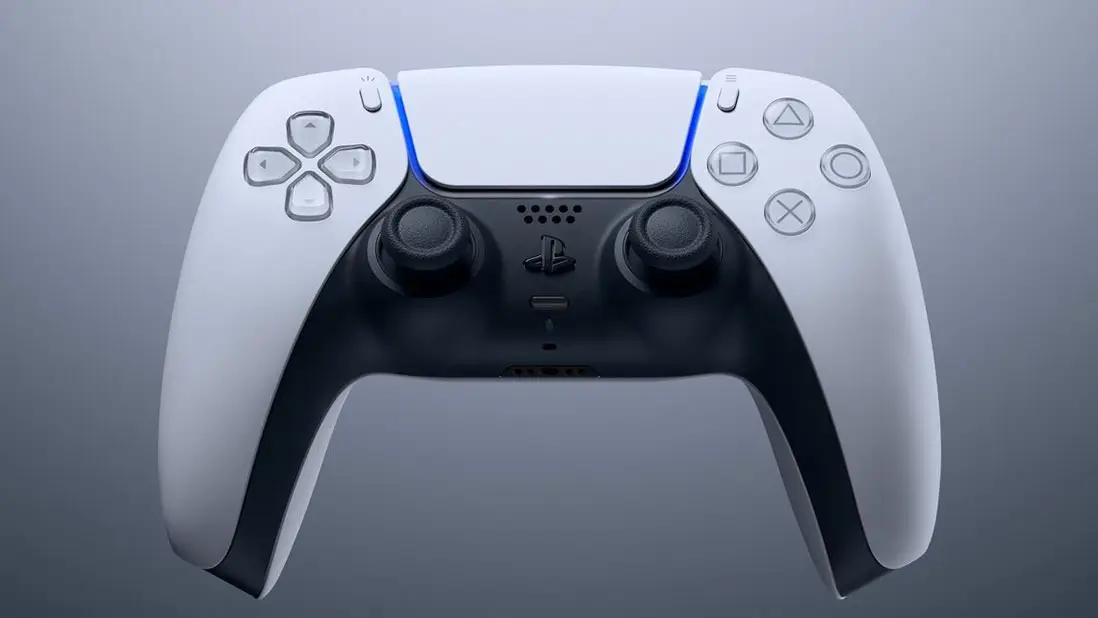
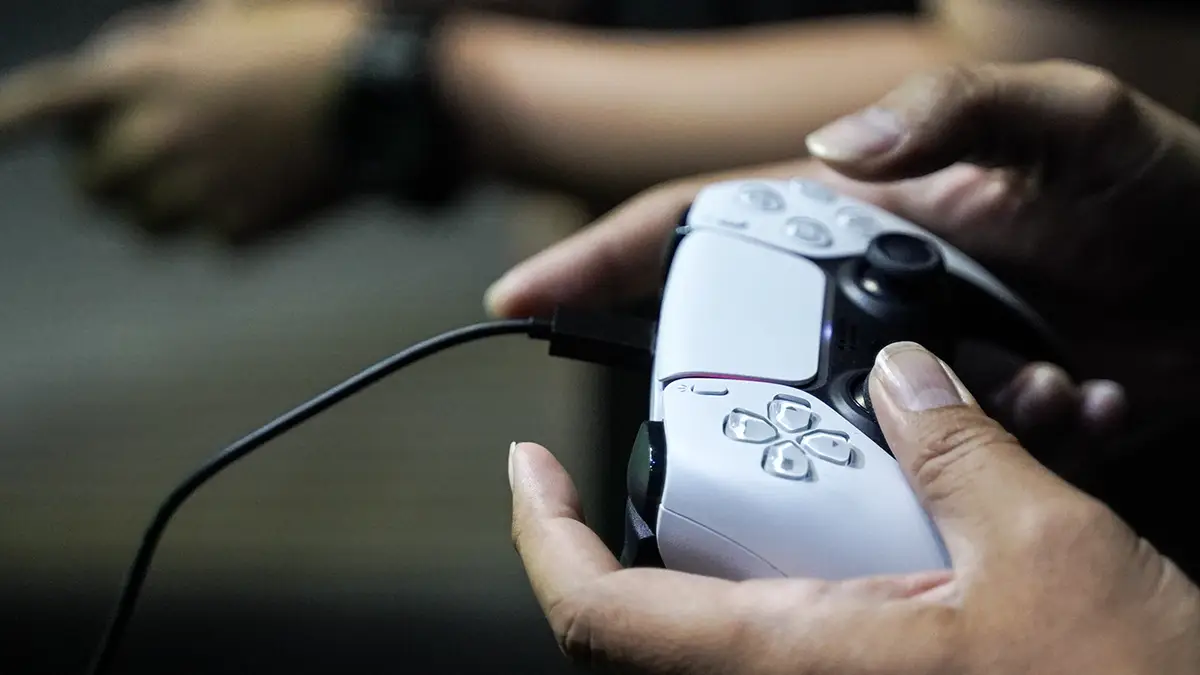
With your PS5 completely switched off, hold down its power button until you hear a second beep, around seven seconds after the first. Connect your DualSense controller via USB and press the PS button.
Repair Console Storage
This option doesn't erase your data, making it particularly useful if you're experiencing storage problems or your PS5 isn't starting up correctly.
Clear Cache and Rebuild Database
Clear System Software Cache removes temporary system data to help address performance and functionality issues.
Comparatively, Rebuild Database scans your console's storage and reconstructs its content index. Neither is a guaranteed fix for every crash.
Reset PS5 and reinstall system software
Both Reset PS5 and Reset PS5 (Reinstall System Software) delete all user data, including locally stored saves.
The latter also removes the console's operating software. Only proceed if Sony's specific troubleshooting guidance calls for it or PlayStation Support recommends it, backing up your data beforehand wherever possible.
When to contact PlayStation Support
If you're experiencing repeated crashes across multiple games, unrecognised storage drives, frequent shutdowns, or an inability to access Safe Mode, it's worth contacting PlayStation Support or using PlayStation Repairs.
If your console is also getting unusually hot, check out our PS5 overheating guide.
PS5 error code FAQs
Why does the same PS5 error code keep appearing?

Recurring errors can stem from problematic game installations, unstable internet connections, account verification issues or hardware faults. The code alone isn't enough to confirm that your console needs repairing.
Does rebuilding the PS5 database delete games or saves?
Rebuilding your database isn't designed to delete games or saved data. Unlike the ‘Reset PS5’ option, it reorganises your console's content index rather than wiping its storage. Nevertheless, backing up important data beforehand is still recommended.
What should I do if Sony does not list my code?
Check your PS5 error history to confirm the complete code, search for it through Sony's official error-code hub, and contact PlayStation Support if it keeps appearing.
We'll continue updating this guide as Sony publishes troubleshooting information for additional errors.
Topics: PlayStation 5, Sony, Tech, PlayStation