PS5 owners can free up storage without deleting a single game with this simple trick


With Call of Duty: Modern Warfare 4 out now and GTA VI on the way, PS5 console storage space is more precious than ever. Thankfully, there's a simple trick to free up PS5 storage space without deleting your favourite games.
As video games become more sophisticated, they also demand more storage. Call of Duty games, for example, can take up anywhere from 160GB to over 300GB on PS5, depending on the content installed.
With GTA VI arriving on November 19, storage could become an even bigger concern. Rockstar hasn't confirmed the file size, but recent reports suggest it could reach 210GB at launch. That could leave players deciding what to keep and what to delete.
The most common way to free up PS5 storage space is to delete a game entirely. However, if you want to play it again later, you'll have to redownload it, which can take a while depending on its size.
Advert
Alternatively, you can transfer it to an external hard drive and move it back to your PS5 when you're ready to play. You can't play PS5 games directly from USB extended storage, but transferring them back is much quicker than downloading them again.
However, this simple PS5 trick could save you a lot of pre-launch stress and help clear storage via a method that doesn't rely on external help.
How to free up PS5 storage space without deleting games
Here's what you need to do:
- Go to Settings from your PS5 Home Screen.
- Select Storage, followed by Console Storage.
- Choose Games and Apps and find a game with the Customise option next to its name.
- Select Customise and choose which add-ons or parts of the game you want to remove.
- Confirm your selection to free up storage space.
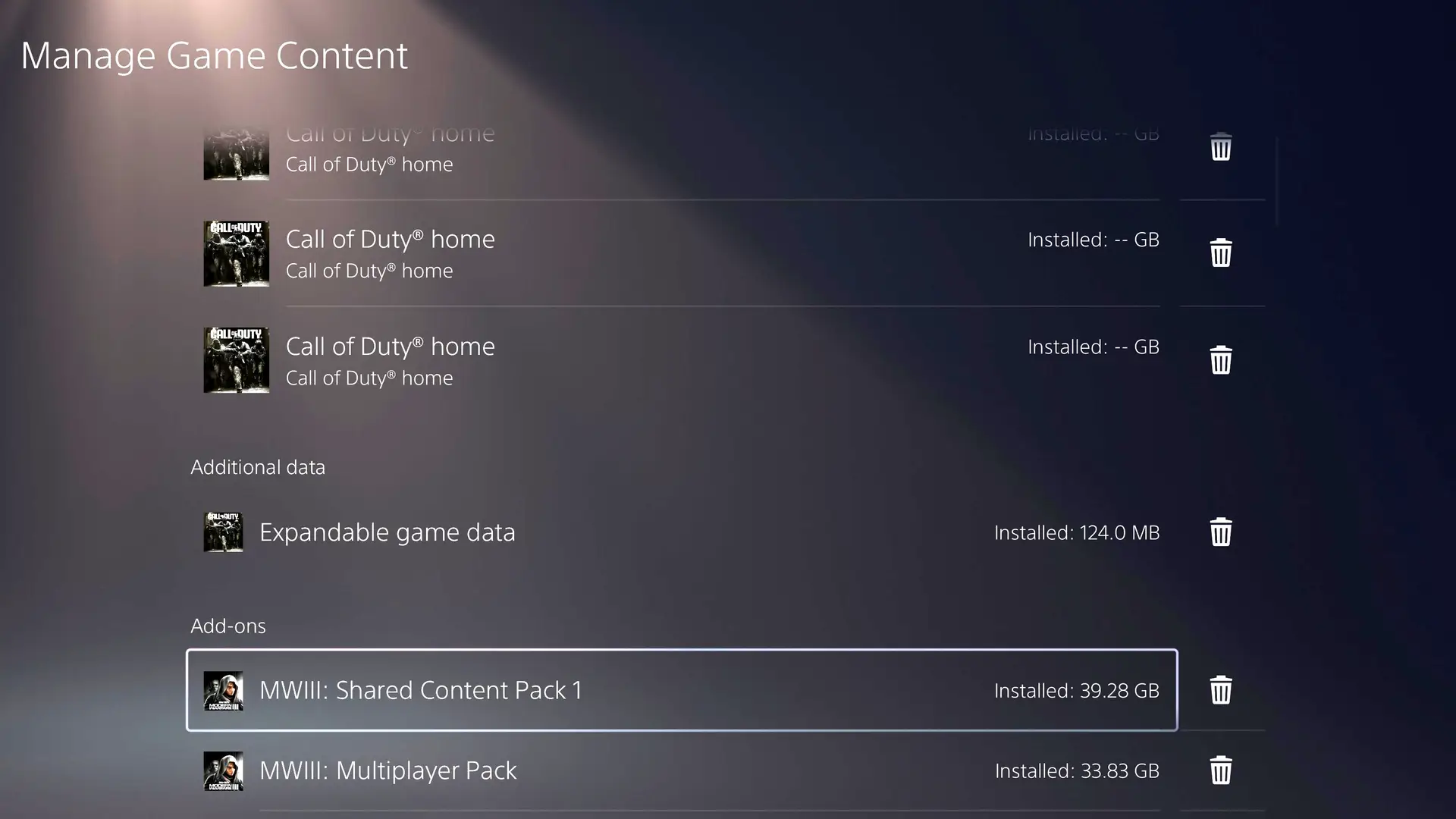
It's worth noting that not every game supports this feature. However, where available, it lets you remove content you no longer need while keeping the rest of the game installed. You can always redownload the add-ons later if you want to play them again.
READ MORE: PS5 overheating: How to fix it and keep your console cool
How to delete additional game content from the PS5 Home Screen
- From the PS5 Home Screen, move the cursor over the game tile you want to manage and press the Options button on your DualSense controller.
- Select Manage Game Content from the menu that appears on screen.
- You'll see a list of available add-ons and DLC for that game, including content you may not have downloaded yet. You can use this menu to download any missing add-ons or remove ones you no longer need.
- Select the content you want to delete, confirm your choice, and you've just freed up some valuable PS5 storage space.
It's worth noting that this option isn't available for every game, but it does appear to be supported by many titles with additional downloadable content. You might also want to consider deleting surplus captures, including those taken every single time you unlock a trophy achievement.
Topics: PlayStation, PlayStation 5, Tech